Amazon Merch Design Size and File Workflow
Amazon's commonly used shirt canvas is 4500×5400 pixels. MerchBanao exports 4200×4800, so it needs one honest finishing step: center the design on Amazon's larger transparent template without stretching it. This guide shows the math, the checks, and the policy limits.
#Amazon Merch Design Size: The Short Answer
The commonly used Amazon Merch on Demand shirt-art canvas is 4500 × 5400 pixels, a 5:6 aspect ratio. At 300 pixels per inch, that represents a 15 × 18 inch canvas. Use a transparent PNG when the garment should show around the artwork, and confirm the current requirements inside your account before every upload.
Amazon provides official product templates. Download the template for the exact product instead of assuming one shirt canvas works for every item. Product types, placements, and requirements can change.
MerchBanao currently exports 4200 × 4800 pixels, not 4500 × 5400. The file can be placed on Amazon's larger canvas without distortion, but it is not an Amazon-ready preset by itself.
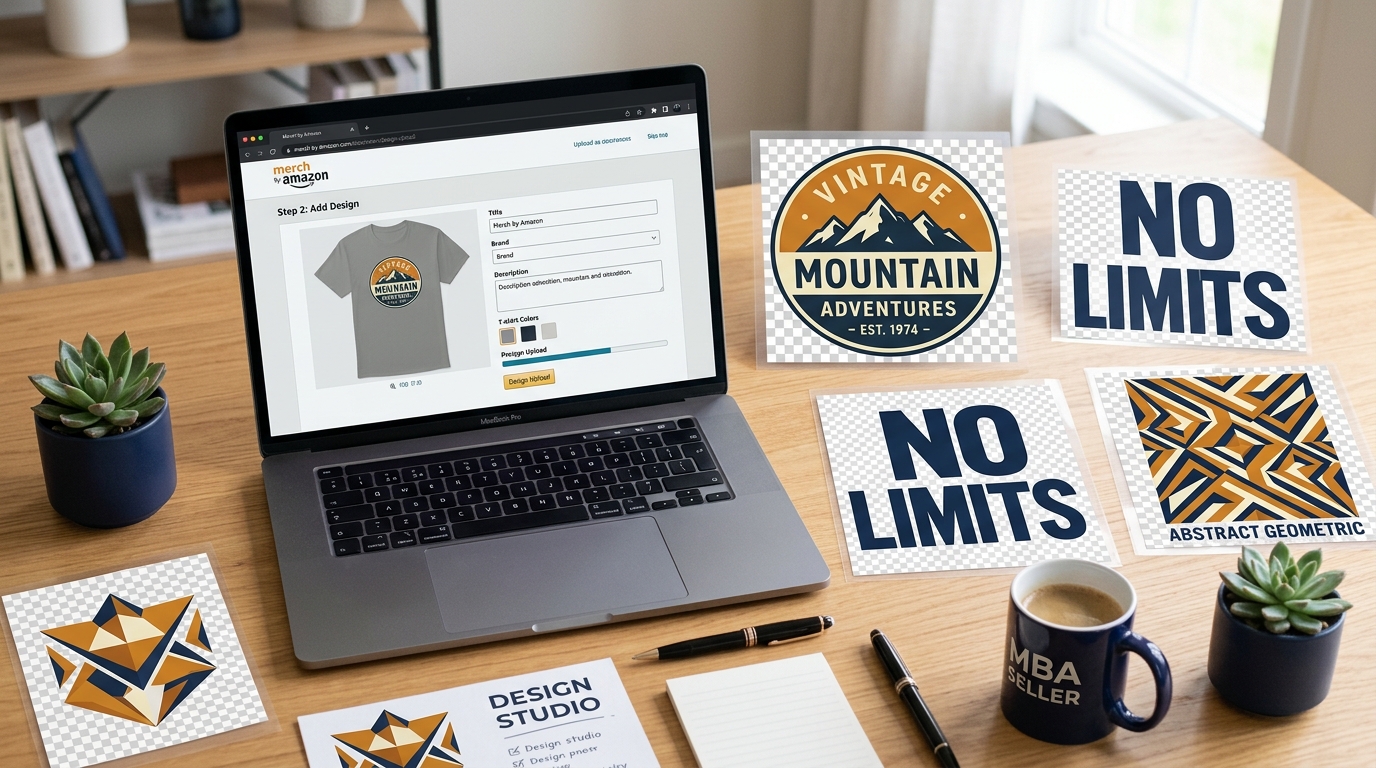
#How to Convert 4200 × 4800 into 4500 × 5400
Do not stretch the MerchBanao export to fill Amazon's canvas. The aspect ratios differ: 4200 ÷ 4800 is 7:8, while 4500 ÷ 5400 is 5:6. Stretching changes the proportions of circles, faces, letters, and linework.
Instead, create a transparent 4500 × 5400 canvas in an editor, import the 4200 × 4800 PNG, keep its aspect ratio locked, and center it. At its original size, that leaves 150 transparent pixels on each side and 300 transparent pixels above and below. You can scale the artwork down further when the composition needs more breathing room.
This adds canvas space; it does not invent image detail. Inspect the artwork at 100% after placement, especially generated text, thin lines, distress textures, and background-removal edges.
- Create a new 4500 × 5400 pixel canvas with transparency
- Import the 4200 × 4800 MerchBanao PNG
- Lock the artwork's aspect ratio
- Center it without stretching
- Leave or increase the transparent margin to suit the composition
- Export as a transparent PNG using the template's current color and file guidance
#A Reliable Prompt-to-Amazon Workflow
Start with the product template, not the generation prompt. The template establishes the canvas and safe area. Then create artwork that fits the available shape rather than forcing a finished image into it.
Amazon's official developer page says creators supply the artwork, choose the product and colors, and set a list price; Amazon creates the product page and handles production and fulfillment. It also points creators to Amazon's current design best practices.
- Choose the product and download its current Amazon template
- Write a brief covering buyer, subject, style, composition, colors, and shirt color
- Generate several artwork directions and reject broken text or anatomy
- Add exact wording as editable text when spelling must be controlled
- Remove the background only when the composition needs transparency
- Place the artwork on the product template without changing its proportions
- Check safe areas, edges, contrast, and readability at listing-thumbnail size
- Export, upload, and review Amazon's preview before submitting
#Technical Checks Before Upload
A 300-DPI label does not make a file sharp. Real pixel dimensions determine how much detail exists. A 4500 × 5400 file has enough pixels for 15 × 18 inches at 300 pixels per inch; changing metadata on a smaller image does not create those pixels.
Treat the downloaded Amazon template and upload preview as the final authority. A design can meet the outer canvas dimensions and still print poorly because the lettering is too small, the contrast is weak, the transparency is damaged, or important details sit too close to a boundary.
- Confirm the exact canvas dimensions in the current product template
- Keep the artwork inside the indicated print and safe areas
- Use RGB/sRGB when the template calls for it
- Verify that transparent areas contain alpha rather than white pixels
- Inspect the PNG at 100% for halos, jagged edges, artifacts, and misspellings
- Preview every selected garment color
- Check the final file size and format against the current uploader guidance
#AI Artwork, Copyright, and Amazon Policy
Do not rely on a blanket statement that Amazon “allows AI designs.” Amazon policies and account-facing guidance control what you may submit, and those rules can change. Review the current content policy and services agreement inside your Merch on Demand account before publishing.
Having permission under an AI tool's terms does not clear third-party rights. Check slogans and brand identifiers in the USPTO trademark search, and avoid copied characters, logos, celebrity likenesses, song lyrics, and artwork you do not own.
The U.S. Copyright Office explains that copyright protects human-authored expression, not material whose expressive elements were determined entirely by AI. Its AI copyrightability report is useful context when deciding how much human selection, arrangement, editing, and documentation to keep.
#Royalties and Account Limits: Check Live Data
Fixed royalty tables and upload-tier lists age quickly. Amazon's current public explanation says a royalty is the offer price minus applicable tax and Amazon's costs. Use Amazon's live royalties information for the product, marketplace, and price you intend to use.
Likewise, use the limits shown in your own dashboard. Do not build a production plan around a tier ladder copied from an old blog post. A useful design workflow improves file preparation; it cannot guarantee account approval, review time, search visibility, sales, royalties, or an upload-limit increase.
- Calculate contribution using the live royalty shown for the product and marketplace
- Record design time and credit costs instead of treating AI generation as free
- Publish within the upload limit shown in your account
- Judge a niche from real impressions, clicks, and sales rather than invented competition thresholds
- Keep source files, prompts, licences, and rights checks with each design
How It Works
A browser workflow for an artwork draft
Prompt it
Describe your vision in text.
Refine it
Tweak colors, layout and text.
Export and check
Download a 4200 × 4800 PNG, then check the product template.
Frequently Asked Questions
Everything you need to know about Amazon Merch design size
Related Tools & Guides
Everything you need to design, launch & sell
Print-on-Demand Design
Create artwork, check templates, and sample the product
Printify Design Tool Guide
Compare Product Creator with an external AI artwork workflow
AI Design Tool for Printful
Prepare external artwork for Printful product templates
Merch Niche Ideas 2026
Audience and product directions to validate
Print-on-Demand Business Guide
Plan a POD launch without holding inventory
Amazon Merch vs Redbubble
Compare access, current fees, product files, and workflow
Ready to turn this guide into
a print-ready design?
Then place the 4200 × 4800 export on Amazon's current template